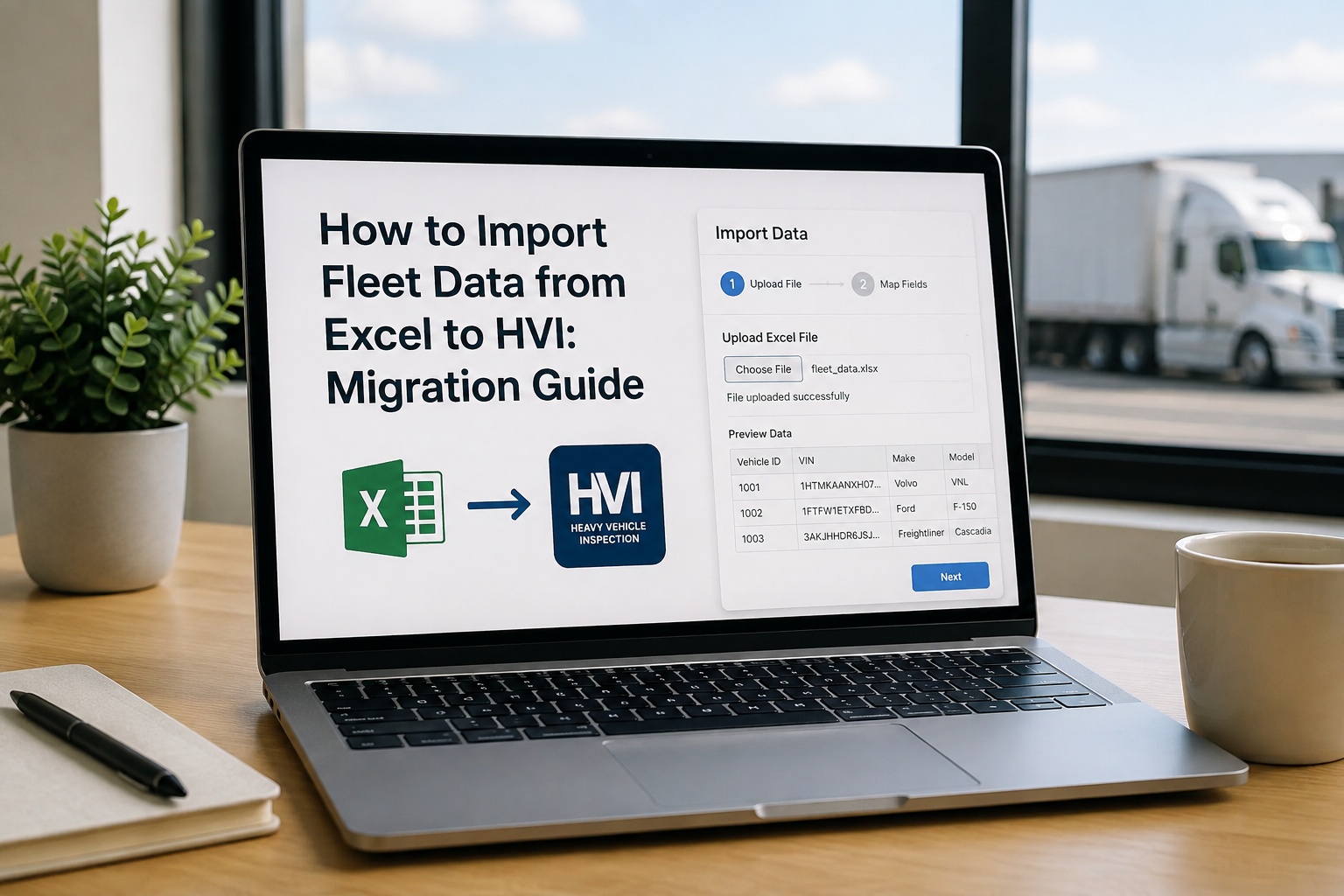
Every fleet keeps a "master vehicle list" somewhere. Usually it's an Excel sheet nobody trusts — three tabs, four column formats, two years of edits no one remembers. The good news: you don't need to rebuild it from scratch to import fleet from Excel into HVI. What you need is a clean 30-minute prep pass, a defined column map, and a first-pass validation. This guide walks the exact process to move 20 vehicles or 200 into HVI without losing history or duplicating records. Book a demo to see the importer live.
Your Messy Spreadsheet, Mapped to HVI in One Pass
Here's what a typical Excel-to-HVI column mapping looks like. Your headers on the left, the HVI target field on the right.
- Truck #
- VIN Number
- Yr / Mk / Mdl
- Plate
- Miles as of Jan
- Assigned Driver
- Insurance Exp
- unit_number
- vin (17 char, validated)
- year + make + model
- license_plate
- odometer_reading + date
- primary_operator
- insurance_expiry_date
Moving fleet data out of Excel isn't the technical problem. The technical problem is that most Excel sheets have four kinds of dirty data hiding in plain sight: duplicate rows, VIN typos, empty required fields, and dates in five different formats. Clean those before you import and the migration takes 30 minutes. Skip the cleanup and you spend a week fixing broken records inside HVI. Here's the process that avoids that.
The 4 kinds of dirty data hiding in your sheetFind these first — fix them once — import clean
Before you even open HVI's importer, run these four passes on your Excel file. Twenty minutes here saves days of cleanup post-import. Book a demo to see the built-in validation catch these automatically
Duplicate rows
Same VIN appears twice with slightly different unit numbers. Same truck listed on "Active" tab and "Maintenance" tab. Duplicates create ghost assets in HVI that split maintenance history.
Invalid VINs
VINs must be exactly 17 characters, no I, O, or Q. Common issues: leading spaces, missing characters, "N/A" placeholder text, VINs from an old vehicle still in the sheet.
Missing required fields
Blank cells on VIN, unit number, year/make/model, or odometer. HVI needs these to create a valid asset. Blank rows import as "unknown" placeholders and clutter reporting from day one.
Mixed date formats
"01/03/2024" (US) vs "01/03/2024" (UK) vs "3-Jan-24" vs "44927" (Excel serial). Insurance and registration expiry dates that read differently on different rows will import incorrectly.
Twenty minutes on these four cleanup passes saves days of post-import correction. Book a demo to see the validator catch all four automatically
What HVI needs vs what's nice to haveThe minimum viable import — and the fields that make it useful
HVI's importer accepts a lot of fields, but you don't need all of them on day one. Start with the required set to get every asset in the system, then layer optional fields as your data catches up. Two tiers, one import.
Minimum to create a valid asset
- VIN — 17 characters, unique key
- Unit number — your internal fleet ID
- Asset type — tractor / trailer / reefer / straight truck / equipment
- Year, Make, Model — can be one column or three
- Current odometer / hours — feeds the PM engine immediately
- Status — active / retired / in-service / out-of-service
Nice-to-have — layer as your data catches up
- License plate + state / province
- Registration & insurance expiry dates
- Primary operator / driver
- Home terminal / assigned location
- Purchase date, purchase price, current book value
- Fuel type, tank capacity, MPG target
- Engine make + serial, transmission serial
- Tire size, wheel config
- DOT number (if per-asset)
- Notes / free-text field for context
You can always add optional fields later — either through a follow-up import or by editing assets in bulk. Getting the required 6 in cleanly is the priority. Start a free trial and run a test import with just the required set first.
The 7-step import walkthroughFrom clean CSV to live fleet in 30 minutes
Once your Excel file is clean, the actual import is a linear seven-step flow inside HVI. Here's the sequence, in the order the importer walks you through it. Book a demo to see each step on your own sample file
Save Excel as CSV UTF-8
Excel → File → Save As → "CSV UTF-8 (Comma delimited)". This handles special characters (accents, symbols) that break plain CSV. Keep one row of headers, one row per asset.
Open HVI Assets → Bulk Import
Navigate to Assets → Import. Download the HVI template file if you'd rather match your columns to it. Or upload your existing CSV as-is and map columns in the next step.
Map columns to HVI fields
HVI auto-detects obvious matches (a column called "VIN" maps to the vin field). Everything else you drag-and-drop or select from a dropdown. Skip columns you don't want to import.
Validation preview
HVI runs the file through its validator: 17-character VIN check, required-field check, duplicate detection, date-format check. Any issues are flagged inline with the exact row number. Fix in the preview or bounce back to Excel.
Set defaults for missing fields
For optional fields left blank, set defaults: e.g., "all imported assets default to Active status" or "default home terminal = Cleveland." Saves editing every asset individually post-import.
Confirm and run the import
Final row count preview. Confirm → import runs. For fleets under 500 assets, complete import takes 10–30 seconds. HVI emails a summary log when done.
Spot-check & save the map
Pull up 5 random assets. Verify VIN, unit number, odometer, and status look right. Save the column map as a template — the next import of the same file format takes under a minute.
Common gotchas & how to avoid themThe mistakes that cost fleets a re-do
Six things go wrong on almost every first migration. If you know them upfront, you can dodge all six on your first try.
"Smith, John".Every gotcha above is preventable if you know it's coming. Book a demo with an HVI onboarding specialist and walk your actual file through the importer before your first real migration.
From an ops manager who migrated 143 assets from three spreadsheets
Our fleet data lived in three separate Excel files — one from the previous ops manager, one the shop maintained, and one dispatch used. Nobody trusted any of them. When we bought HVI I thought migration was going to be a week of work.
The prep took a full afternoon — sorting duplicates, fixing 11 bad VINs, normalizing dates. Actual import took 22 minutes for 143 assets across three files. What surprised me was the validator caught four VINs that had been wrong in our sheets for years — two trucks we'd sold in 2022 that were still on the active list. Migration wasn't just a data move, it was our first honest fleet count in years.
Frequently asked questions
What file format does HVI accept for bulk fleet import?
HVI accepts CSV (Comma-Separated Values) as the standard bulk import format, with UTF-8 encoding recommended to handle special characters like accented letters, symbols, and non-English text without corruption. Excel spreadsheets (.xlsx, .xls) should be saved as CSV UTF-8 before uploading — in Excel that's File → Save As → "CSV UTF-8 (Comma delimited)". Google Sheets and Apple Numbers can export CSV directly. The reason CSV is the standard: it's a flat, universally-parseable format that avoids the version-specific quirks Excel introduces (merged cells, formulas that evaluate differently across versions, hidden columns). If your data is in a different fleet system today, most platforms can export to CSV directly — you rarely need to touch Excel in between.
How many vehicles can I import in one file?
Industry standard practice is to cap CSV imports at approximately 500 rows per file to prevent timeout errors and to make validation manageable. Fleets larger than 500 assets should split into multiple files — a 1,200-truck fleet might do three imports of 400 assets each. This isn't a technical hard limit so much as a practical one: smaller files import faster, validate more clearly, and if something goes wrong the fix is easier to scope. HVI's saved column map feature means the second, third, and fourth imports from the same source file format take under a minute each — you don't re-map every time. For very large migrations (5,000+ assets), most HVI customers work with our onboarding team to script the import in phases rather than uploading a single massive file.
Will my existing maintenance history import along with the vehicles?
Vehicle records and maintenance history are two separate imports in HVI — and this is the right structure, not a limitation. Vehicles come in first (the required 6-field asset creation import). Maintenance history, work orders, and past PM records come in as a second import once the vehicles exist, because each historical record has to link to a vehicle by VIN. If your Excel sheet has "last oil change date" as a column on the vehicle row, that comes in with the vehicle. But a full year of work-order history — every service, every part, every labor hour — belongs in a separate work-order CSV that references the imported vehicles by VIN. Most fleets bring in current vehicle state on day one and layer historical maintenance data over the following 2–4 weeks; some skip historical import entirely and start fresh, which is a perfectly valid choice for fleets whose past records were unreliable anyway.
What happens if the importer catches errors mid-file?
HVI's validator runs before any data is written to your account — not during. That means an error on row 47 doesn't leave rows 1–46 partially imported. The validator flags every issue inline (row number, column, what's wrong, suggested fix) and gives you the choice: fix in the browser preview and re-run, or bounce back to Excel, fix the source file, and re-upload. Common auto-caught errors include: VIN not 17 characters, VIN contains invalid characters (I, O, Q), duplicate VIN in the file, duplicate VIN vs existing HVI records, required field blank, date in unparseable format, asset type not in the allowed values list. Nothing writes to your live fleet until the file passes validation clean. This is the fundamental difference between a bulk-import tool and a raw database dump — the validation prevents the "we imported 400 records and now half are broken" scenario.
Can I update existing HVI assets by re-importing an updated CSV?
Yes — and this is how most fleets keep their HVI records in sync when they still maintain some data in Excel during transition. HVI uses VIN as the unique matching key on import. If an incoming row's VIN already exists in HVI, the row is treated as an update to the existing asset rather than a new record. Fields you include in the CSV get overwritten with the new values; fields not in the CSV stay as-is. This means you can push a monthly odometer update via CSV (just VIN + odometer_reading columns) without disturbing any other field on the asset. It's also how fleets migrate progressively — import minimum required fields on day one, add optional fields over the next few weeks through incremental updates. Just be careful: an update import overwrites, so make sure the incoming values are current before uploading.
Import your fleet from Excel to HVI — cleanly, in one afternoon
HVI's bulk importer validates VINs, catches duplicates, normalizes dates, and saves your column map for future imports — so the second migration and every one after takes under a minute. Free onboarding help for fleets over 100 assets. No hardware. No IT ticket. Live fleet dashboard from your first import onward.
No credit card · No hardware · Bulk importer ready on day one